(Aplikasi DirBuster ini berfungsi untuk men scan file dan direktory yang sensitif yang dapat dimanfaatkan orang lain untuk mengotori website anda. Contoh file dan directory yg sensitif : buckup, halaman login, log file)
1. To open the application DirBuster at kali linux:
(Untuk membuka aplikasi DirBuster pada kali linux )
Aplications--kali linux--web applications--web crawlers--DirBuster
2. DirBuster function of this is to Brute Force a Directory / file exists in a website.
(Fungsi dari DirBuster ini adalah untuk mem Brute Force suatu Directory/File yang ada di dalam suatu website)
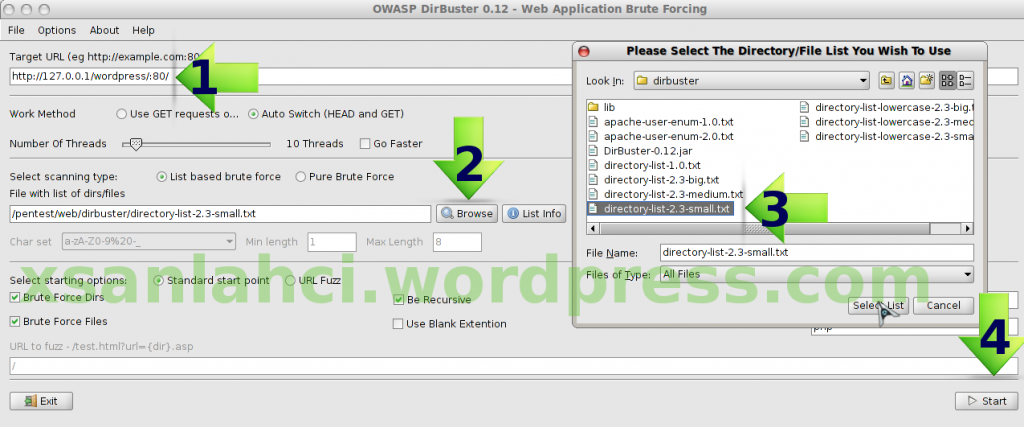
3. Enter the url address of the target url target column.
(Masukan alamat url dari taget ke kolom url target)
1)Masukan alamat dari url target pada kolom yang sudah disediakan
2)Browse wordlist DirBuster.
usr--share--dirbuster--directory-list-2.3-small.txt
3)Put directory List small when a small target website
(Masukan directorylist small apabila website target kecil)
4)Klick start to begin scanning
(klik start untuk memulai scanin)
4. After scannng process
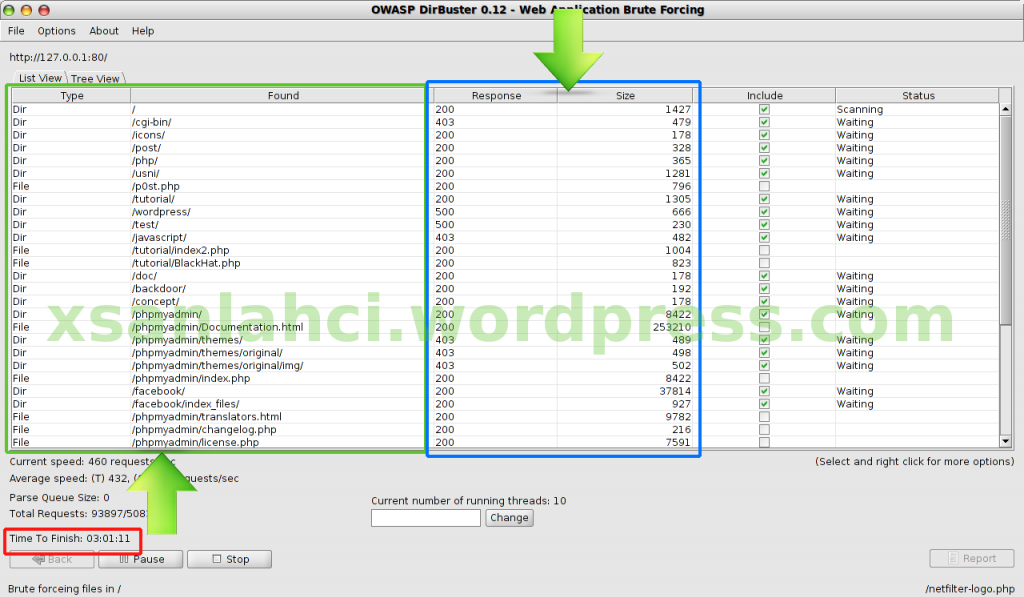
-The first arrow on the Green colored box .. are some of the directory / file successfully found by dirbuster
(Panah pertama pada kotak berwarna Hijau .. adalah beberapa directory/file yang berhasil di temukan oleh dirbuster)
-The second arrow in the blue box .. is the response of a file / directory that when opened with a browser
(Panah kedua pada kotak berwarna biru .. adalah respon dari file/directory yang jika di buka dengan browser)
-Red box below is the time taken by dirbuster to do bruteforcing.
(Kotak berwarna merah dibawah adalah waktu yang dibutuhkan oleh dirbuster untuk melakukan bruteforcing)
-To view the location of shaped Directory and File Tree view just click the icon on the top left corner.
(Untuk melihat letak yang berbentuk Directory dan File tinggal klik icon Tree view pada pojok kiri atas)

Tidak ada komentar:
Posting Komentar